Upload a BOM and Request a Quote
With BOM upload you can upload your bill of materials spreadsheet or copy & paste into our BOM form. Once uploaded you can add to cart, request a quote, download part information or add to a Project List.
Upload an Excel Sheet
Upload a spreadsheet of your entire Bill of Materials. Then map the columns that contain your part numbers and quantities.
Copy & Paste Part Numbers
If you only have a few part numbers or do not have an Excel workbook, you can simply copy & paste in a list of part numbers into the BOM Upload tool.
Add to Cart or Request Quote
After your numbers have processed, both matched & unmatched parts can be added directly to the Quote Request form for a custom quote.
Using the BOM Tool
There are two upload options provided. You can upload a BOM excel file or copy and paste your part numbers directly into the form.

File Upload
Follow the steps below to upload a BOM file. You can download our BOM template so that your format will automatically be aligned with our system.
1. Select the Choose File button to browse files or drag and drop your spreadsheet in the dark blue box to upload a BOM
2. Select the Sheet Name where the BOM is located
3. Select the Upload BOM button
This will take you to BOM Upload - Step 2 where you can map your data.
BOM Upload - Step 2
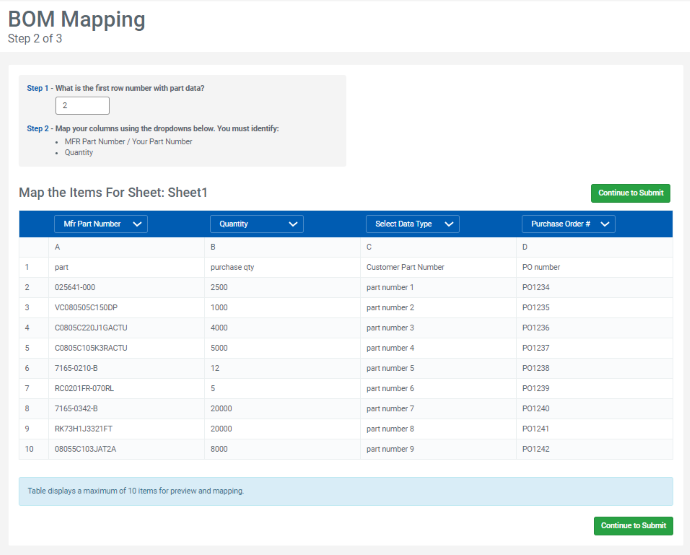
The first section of the page allows you to use your saved map settings if you're logged in and have previous settings saved. This is also where you can specify which row your data begins on. Doing so allows the BOM Upload to ignore any data before the row specified.
Your spreadsheet will appear in the second section, in the Map the Items For Sheet table. Dropdown fields appear at the top of each column in the worksheet. These columns can be used to label each column of data. Options are:
- MFR Part Number
- Quantity
- Your Part Number
- Purchase Order Number.
- Blank
Tip: Choosing to leave the field blank will tell the BOM Upload application to exclude the column from the BOM Upload query.
You will be provided with the option to Save Map Settings for future use if logged in. This allows you to apply your current mapping to future BOMs, saving you time in the future.
Once you're finished with mapping, you will select the Continue to Submit button to submit your BOM.
This action will direct you to BOM Upload - Step 3, where you can view the results of the BOM Upload.
BOM Upload - Step 3
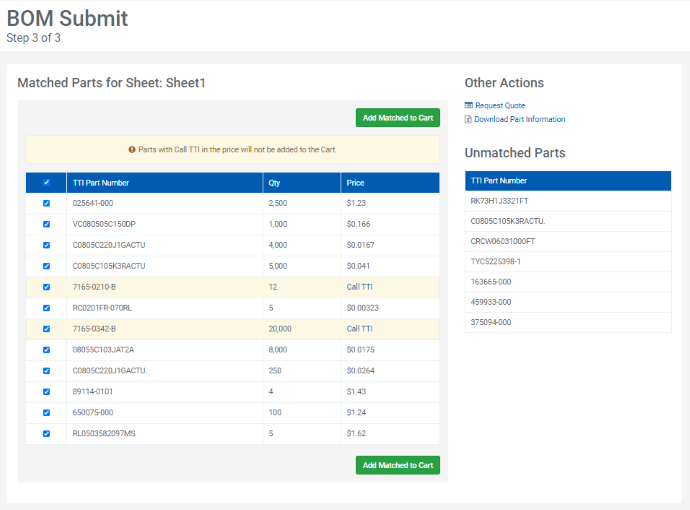
Your results are sorted into Matched and Unmatched Part Numbers. Matched Part Numbers will display the best price available at the Qty (Quantity) requested.
Tip: If you're enrolled in KROS and/or VIP Pricing, the BOM upload can pull in that price!
From here, you can add your Matched Part Numbers to their Shopping Cart by selecting the Add Matched to Cart button, or add them to a Quote Request by selecting the Request Quote button. Only parts where the checkbox is selected will be added, allowing you to omit parts from your request. If you're signed in, you will also receive the option to add your Matched Parts to a Project List.
For all parts, both Matched and Unmatched, you can select the Download Part Information button to download a spreadsheet of your request containing pricing, availability, and other pertinent sales data.
Download - Part Information | xls
Copy-and-Paste
BOM Upload
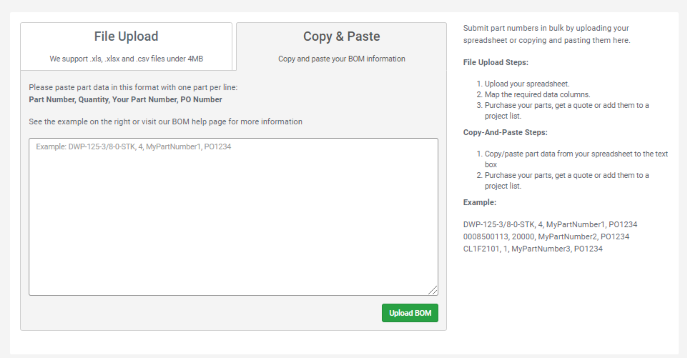
You can copy and paste your build of materials (BOM) list instead of uploading it. When you do, we ask that you use this format (Customer Part Number and PO Number are optional ):
Part Number 1, Quantity, Customer Part Number, PO Number
Part Number 2, Quantity, Customer Part Number, PO Number
Part Number 3, Quantity, Customer Part Number, PO Number...
Each set of Part Number data should be entered in its own line. You can add up to 100 lines of data. When your list is complete you can select the Upload Data button to view your results.
Tip: Because Copy-and-Paste requires specific formatting there is no need for you to map your data. This allows you to skip directly to BOM Upload - Step 3 where you can view your results.